 Essential Google Account Security and Privacy Settings" loading="eager">
Your Google Account is more than just an email—it’s likely the hub of your digital life. It stores years of personal information: emails, documents, photos, videos, location history, search records, third-party app access, and even data you may not remember creating. That’s why protecting your Google Account isn’t optional—it’s essential.
At TecnetOne, we see every day how a single mistake—a weak password, a forgotten setting, or an app with excessive permissions—can lead to unauthorized access, data theft, or identity fraud. The good news is that Google offers powerful tools to protect you. The bad news is that many of them are hidden, disabled by default, or simply overlooked.
Here’s a clear, step-by-step guide to strengthening the privacy and security of your Google Account—without making your life harder.
Your First Step: Google’s Security Checkup
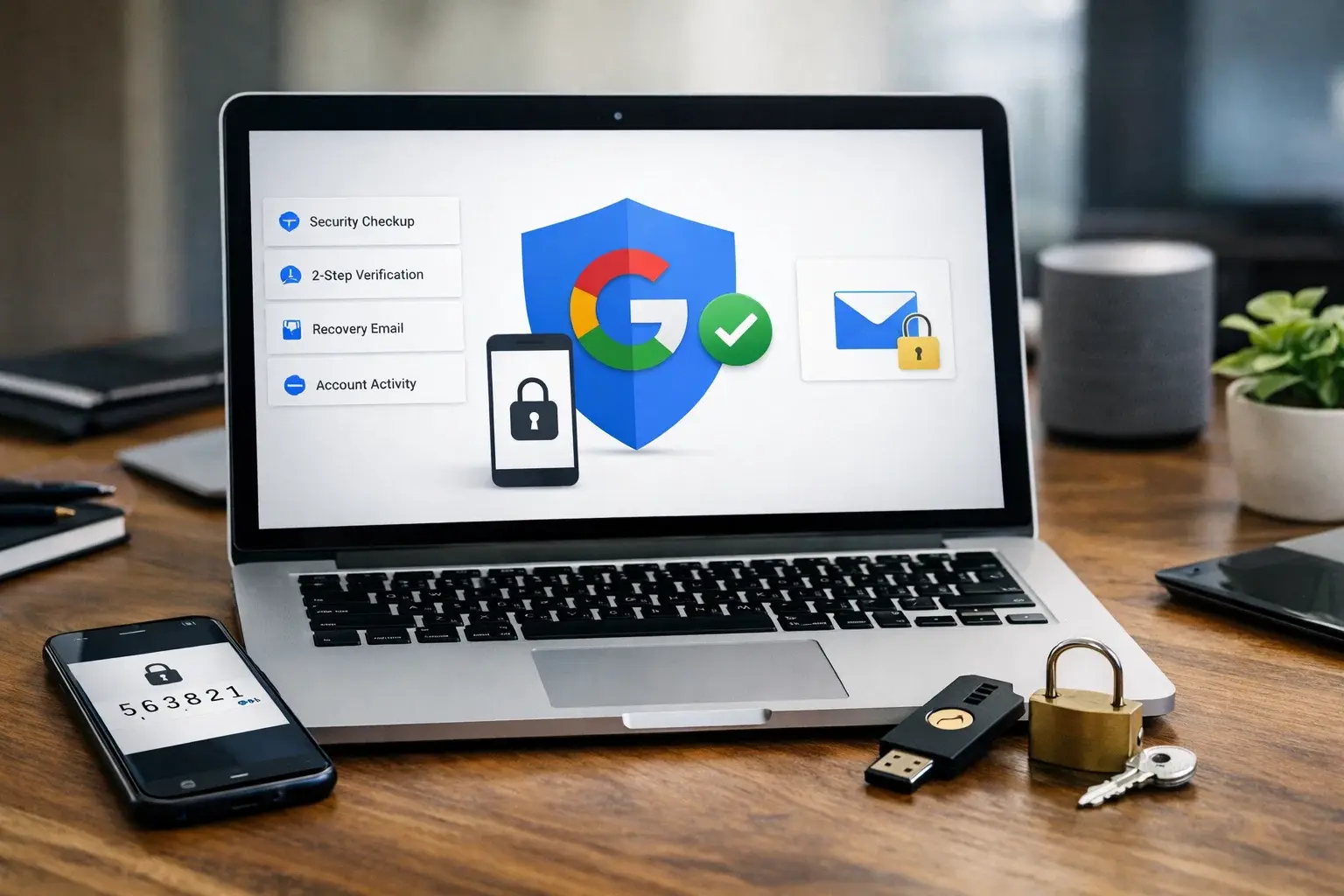
Google’s Security Checkup is your first line of defense. You can find it in your account settings under the Security tab, and it works as a quick audit of your current status.
When you run it, Google reviews several critical areas:
- Recent logins and suspicious activity
- Devices still connected to your account
- Recovery methods (email and phone)
- Connected third-party apps and services
This checkup helps you detect things like logins from unusual countries, old phones still linked to your account, or unused apps that still have access.
Our tip at TecnetOne: don’t just run this once. Treat it like reviewing your bank statement—doing it every few months can prevent serious issues.
Strengthen Access: Go Beyond the Password
Today, even the strongest password isn’t enough. Automated attacks, phishing, and data leaks make relying solely on a password a serious risk.
- Two-Step Verification (2SV)
2SV adds an extra layer of protection. In addition to your password, Google will ask for confirmation via:
- Your phone
- An authenticator app
- A physical security key
This blocks most automated attacks. Avoid using SMS as your primary method—it can be intercepted. Authenticator apps or physical keys are much safer.
- Passkeys: The Future of Login
Passkeys are designed to replace passwords. Instead of typing a string of text, you log in using:
- Your fingerprint
- Your face
- Your device’s screen lock
Passkeys can’t be reused, stolen via phishing, or copied. They also make logging in faster and easier. If your device supports them, enabling passkeys is one of the best security decisions you can make today.
Read more: Massive Cyberattack on Web Browsers: How Did It Happen?
Privacy Is Also Security
Securing your account isn’t just about keeping others out—it’s also about limiting how much data is stored and for how long. Less data = less risk if something goes wrong.
- Control Your Activity and History
In the My Activity dashboard, you can manage:
- Search history
- YouTube activity
- App usage
- Browsing history
You can pause tracking, manually delete data, or set up auto-deletion (every 3, 18, or 36 months). This lowers long-term exposure without losing key features.
- Location History
Google tracks where you go and when. It’s useful, but highly sensitive. You can:
- Pause tracking entirely
- Delete specific days
- Wipe your entire timeline
Managing this data gives you better balance between convenience and privacy.
Be Cautious with Third-Party Apps
One of the most overlooked—and risky—areas is third-party app access. Many apps retain permissions long after you stop using them.
In the Third-Party Access panel, you can check:
- Which apps can access your account
- What data they can see (Gmail, Drive, Calendar, etc.)
Remove anything you don’t use. At TecnetOne, we recommend reviewing this section every 3–6 months and always after uninstalling an app.
Secure Your Account Recovery Options
Recovery methods are your safety net. An outdated email or phone number can mean losing your account permanently.
Make sure:
- Your recovery email is secure and unique
- Your phone number is current
- Linked accounts use strong, unique passwords
If someone compromises your recovery info, they may take your entire account.
You might also be interested in: Why OneDrive, Dropbox, and Drive Are Not a Backup
Advanced Protection for High-Risk Users
If you’re a journalist, executive, activist, or manage highly sensitive data, Google’s Advanced Protection Program is for you.
It:
- Requires physical security keys
- Blocks most third-party apps
- Significantly reduces phishing risk
It’s more restrictive—but offers one of the highest levels of personal account protection available.
Security Is Not One-and-Done—It’s a Habit
A common mistake is thinking you can set up security once and forget it. In reality, your Google Account evolves with you. Every new app, device, or connection expands your attack surface.
Small habits like:
- Activating passkeys
- Removing old apps
- Periodically reviewing access
make a big difference without disrupting your day.
At TecnetOne, we treat your Google Account like a digital vault. It’s not enough to lock it—you must check the lock from time to time to ensure it still holds.
FAQs
- Is two-step verification enough?
It helps a lot, but isn’t bulletproof. Combine it with passkeys, app reviews, and secure recovery methods for full protection.
- Can I reduce tracking without breaking things?
Yes. Google will still work if you pause tracking. You’ll lose some personalization, but keep core features.
- How often should I review third-party apps?
Every 3–6 months, and any time you stop using an app. Old permissions are a common entry point for threats.
- Are passkeys better than strong passwords?
Yes. They eliminate many common threats like phishing or reused credentials. For most users, they’re the safest option available today.
Final takeaway: Securing your Google Account doesn’t require tech expertise—just attention and consistency. With a few simple steps, you can dramatically improve your privacy and security in an increasingly digital world.

Levi Yoris
Levi is passionate about finance and technology, with a strong background in Financial Coordination. However, her true passion and curiosity have led her to explore the fascinating field of cybersecurity and Microsoft innovations. Combining her financial skills with a deep interest in data and systems protection, she has found in blogging a way to share her knowledge and help others understand the importance of staying secure in the digital world.